
Archived Zidy guide. The original steps and illustrations are preserved; platform details may have changed. View original guide.
If you already have a Google Business Profile, then you’re business should be listed in Google Maps. If it’s not showing up, then make sure you’ve verified your Google Business Profile and have entered the correct address for your business. If you don’t have a Google Business Profile, then you can set one up for free in just a few minutes with basic information. Currently, setting up a Google Business Profile is the only way to add your business to Google Maps.
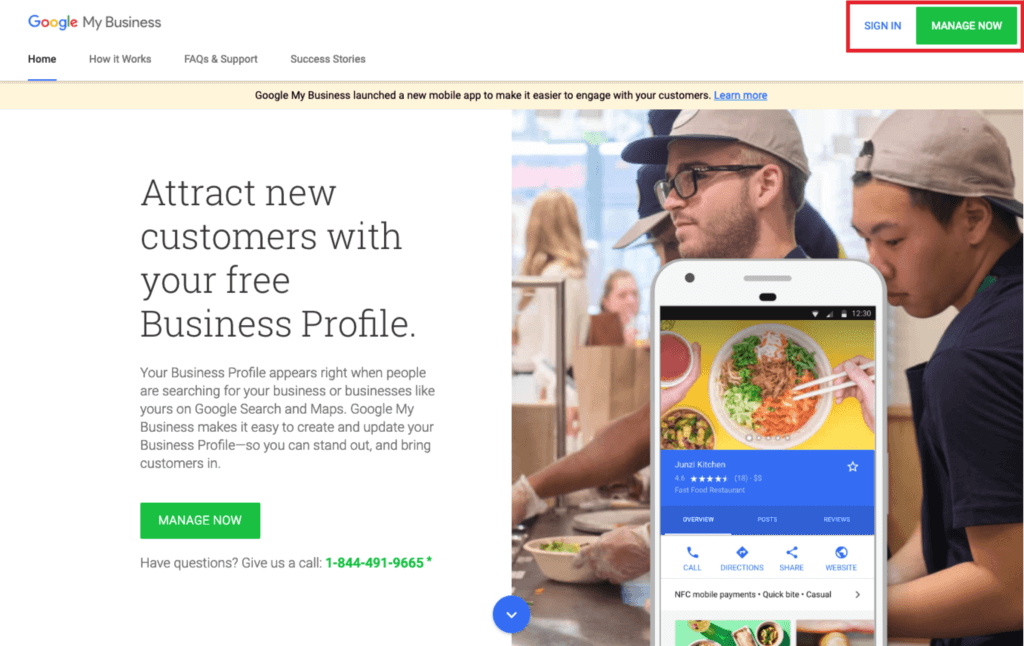
1. Log into Google Business Profile
Google Maps links to Google Business Profile. Consider Google Business Profile your go-to portal to add your
business to Google Maps and/or edit your information. If you don’t have a Google Business Profile, you’ll need
to set one up in order to get your business listed on Google Maps.
2. Search to see if Google Business Profile already lists you
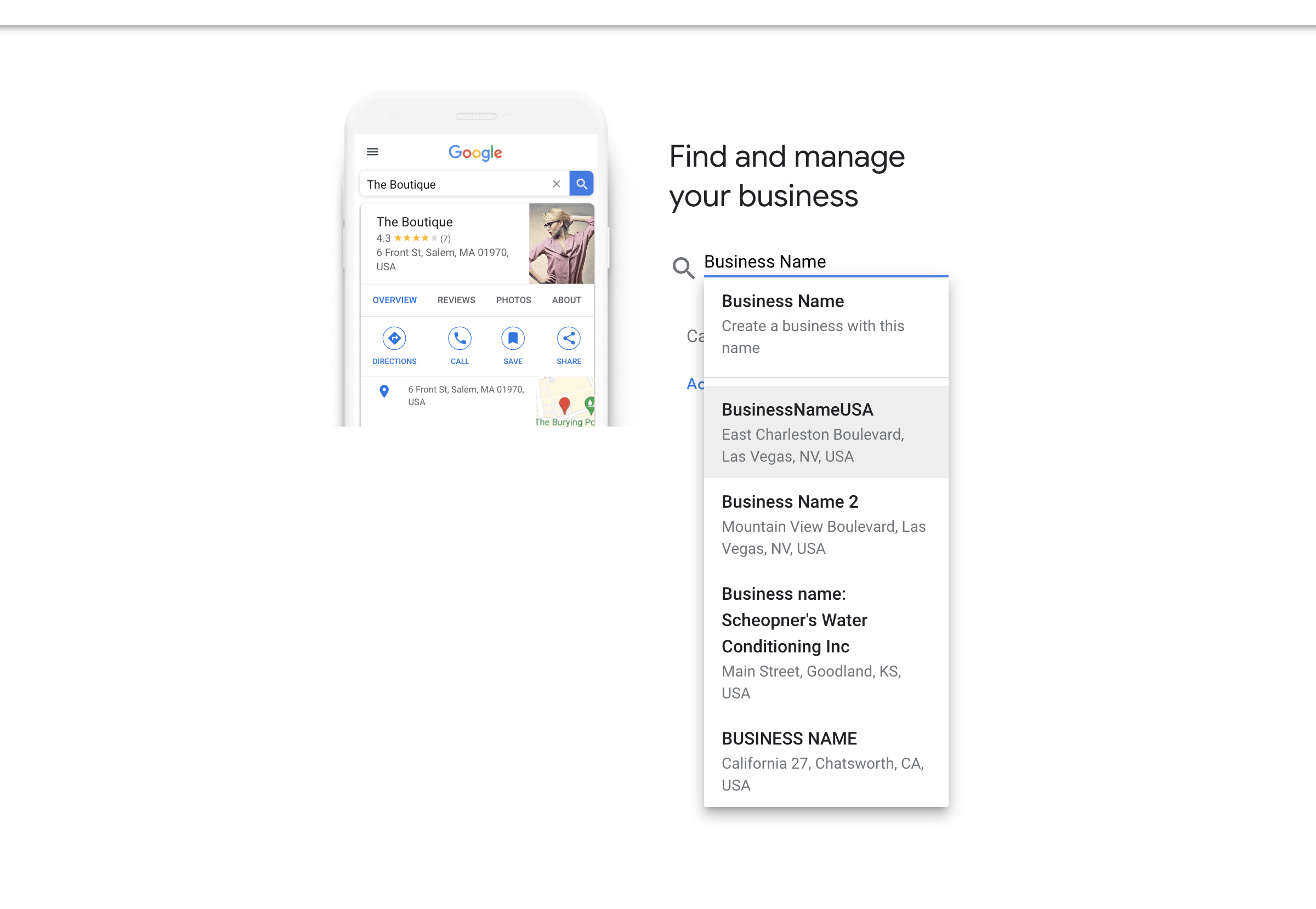
Before you start a new account, you need to search to see if Google Business Profile and Google Maps already
list your business. Users can input information, so your business might already appear. To find out, all you
need to do is search your business’s name when Google Business Profile prompts you to.
3. If Google Business Profile lists your business, select it
Your search results may show that Google already has a listing for you. If so, select the listing to claim it.
Claiming the existing listing rather than posting a new listing will prevent double listings. Since double
listings can confuse customers and make it difficult to manage your reputation, businesses benefit from
maintaining a single listing.
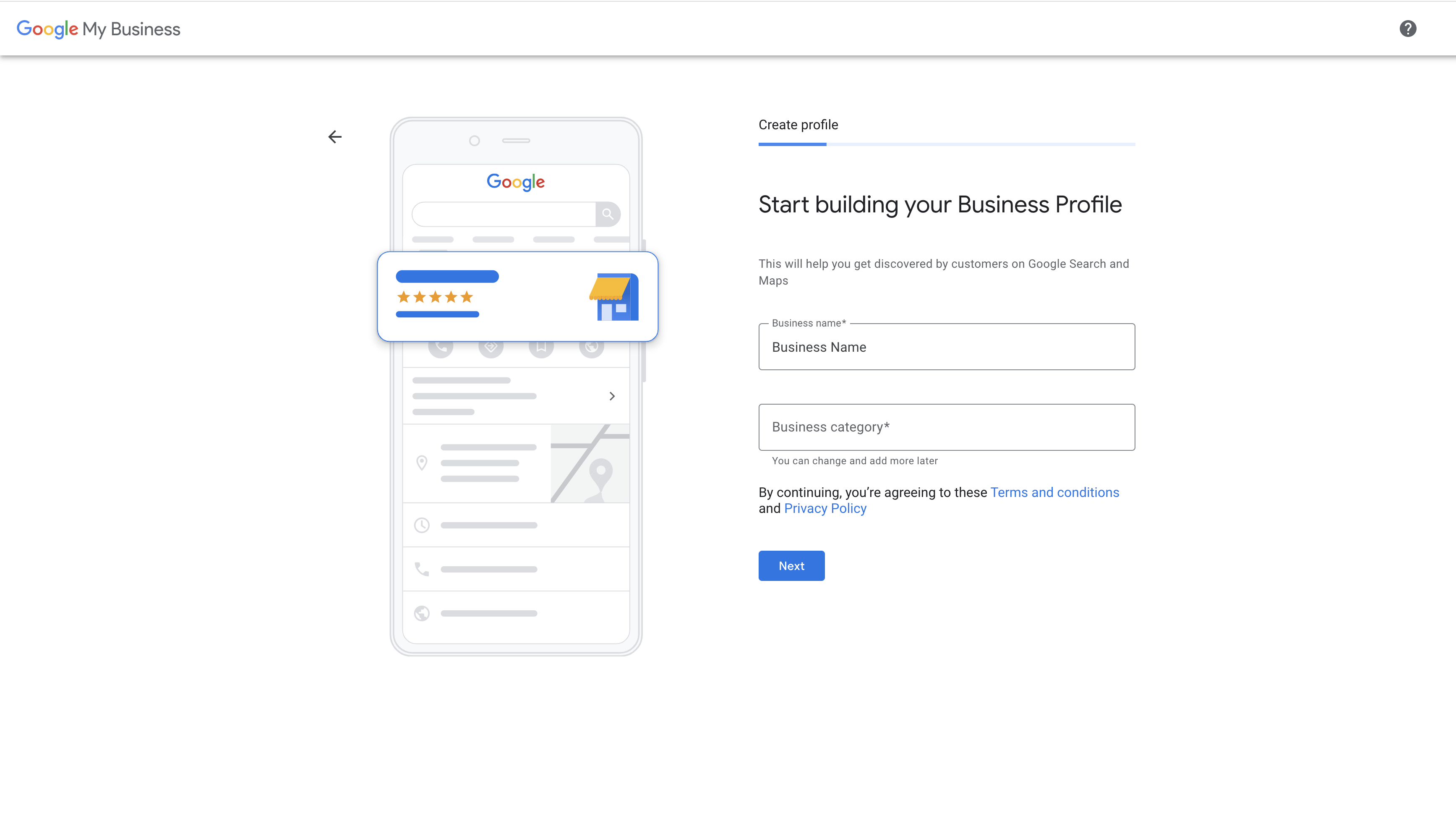
4. If Google Business Profile doesn’t list your business, click “Create a business with this name”
If your business isn’t listed on Google Business Profile, you need to enter all of your information, including
your business category.
5. Accurately enter business information
Whether you claim your listing or post a new listing, make sure the information you enter is as accurate as
possible. Customers use information like a business location, phone number, and hours to contact your business
and come in to shop. Inaccurate information can turn off customers and make your business seem less
professional. Plus, if your potential customers can’t find you or reach out to you, they most likely will do
business elsewhere.
As you enter information, the platform will also ask you if you want your business to appear on Google Maps.
Don’t rush through and forget to verify that you want to be listed on Google Maps! That’s the whole point,
isn’t it?
6. Verify your business
Attaining Google Business Profile verification isn’t always quick, so be prepared to wait. To verify your
business, you need to hold tight until you receive a postcard with a verification code from Google. This can
take one or two weeks, so be careful to look for it when you go through your mail each day. After in receive
your postcard, you have 30 days to finish your verification.
In some cases, Google may also allow users to verify by receiving a pin via text message or phone call, which
is much quicker than mail-based verification.
7. Add, edit, and update information
Once you set up your Google Business Profile, you will need to check back often to add, edit, and update your
information. As we mentioned above, users can edit pages and this information may not be correct.
Whenever you have new information or photos to share, you can do so through your Google Business Profile,
which can make your business more appealing to potential customers. Additionally, if you make any changes to
your hours, address, or phone number, you should update your account to reflect those modifications.
Why You Should Add Your Business to Google Maps
Gain access to a huge user base
Approximately 154 million people use Google Maps each month, making Google Maps a phenomenal tool for business
owners to reach a huge potential audience. If you’re not on Google Maps and your competitors are, potential
customers who search Google Maps may flock to your competitors without ever knowing you exist.
Connect with customers looking for nearby businesses
Unlike many ads and promotions, Google Maps connects nearby customers with local businesses, so customers in
your neighborhood may be more likely to see your listing. This proximity can make potential customers more
likely to visit your business too as they’re in the buyer’s mindset.
Ensure information is accurate
Adding your business to Google Business Profile ensures the information on Google Maps is accurate. Without a
listing, you may be able to see that
Easily locate google business on Zidy Platform
Business that are on google maps are easily located on Zidy platform. Unlocking many features like google
reviews analytics and automated review invites.